
Summary
The Product field allows the creation of products in the form. There are several options for the type of field that should be used for the Product Field: Single Product, Drop Down, Radio Buttons, and User Defined Price. It is available under the Pricing Fields section within the form editor.
Product field as displayed in the Field Library
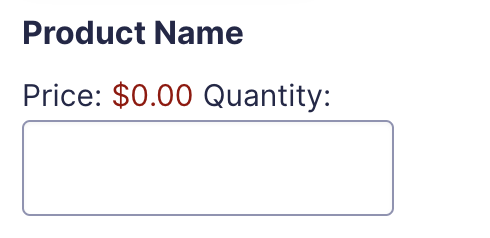
Product field as displayed in the Form Editor.
Common Settings
This field uses only common field settings for the Appearance and Advanced settings. For a description of each of the common field settings, refer to this article. Below you will find description of specialty settings that are particular to this field.
General Settings
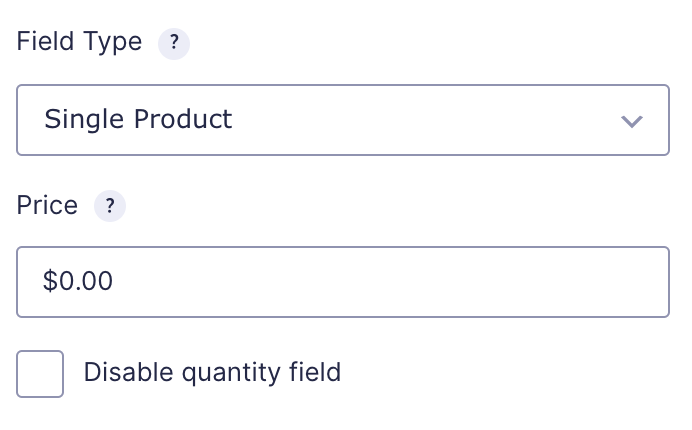
Field Type
Select the type of field from the available form fields.
| Field | Description |
|---|---|
| Single Product | The Single Product field type will display the price and a quantity field by default. |
| Drop Down | The Drop Down field type will display as a drop down field on your form. When this option is selected, the General tab will refresh with options to specify multiple products. |
| Radio Buttons | Similar to the Drop Down option, but radio buttons instead. |
| User Defined Price | The User Defined Price field type will display as a single line input on your form. |
| Hidden | If set to Hidden, the product field will not be shown, but will still be processed upon submission. |
| Calculation | Generates product information based on calculations. See this article for an example and the rules on using calculations. |
Price
Enter the base price for this product.
Disable Quantity Field
Disables the quantity field. A quantity of 1 will be assumed or you can add a Quantity field to your form from the Pricing Fields.
Choices
For Product fields set to Drop Down or Radio Buttons field type you would see the Edit Choices button which would allow you to edit the Label, Value and Price for each choice.

Click the Edit Choices button under Choices to open the Edit Choices flyout.
Merge Tags
For more information on the use of merge tags, refer to these articles.
Usage
{Product Name A (Name):1.1}
{Product Name A (Price):1.2}
{Product Name A (Quantity):1.3}
Modifiers
This merge tag does not have any modifiers.